
The Arduino MEGA 2560 Hardware Manual Resources page is designed to support your work with the Arduino MEGA 2560 by bringing together all essential companion materials in one convenient location. Whether you are following along with the Arduino MEGA 2560 Hardware Manual, building projects, or verifying technical details, this page ensures you have quick access to the tools and references you need.
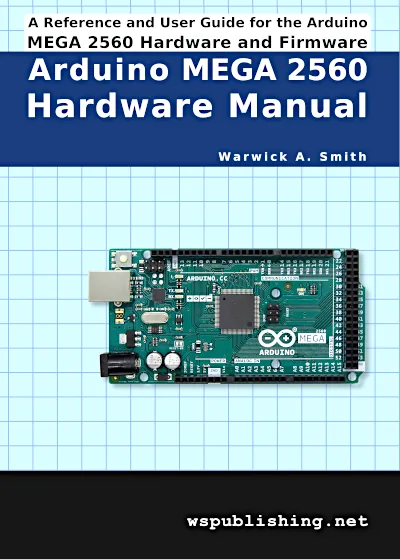
On this Arduino MEGA 2560 Hardware Manual Resources page you will find a collection of carefully prepared materials that align directly with the content of the book.
These include printable templates and design files for hardware development, a complete list of web links referenced throughout the manual, and all Arduino sketches used in examples. In addition, the page provides an up-to-date errata section to ensure that any corrections or clarifications are easily accessible.
Use the table of contents below to quickly access the materials that complement the book.
As can be seen in the table of contents, there are four main sections on this page:
- Downloads: Links to the downloadable files from the book
- Web Links: All of the websites referenced in the book in an easy to click format
- Arduino Sketches: Code for all the sketches in the book in an easy to copy format
- Errata: Check errata for the book or report any errors that you found in the book
Table of Contents
- Arduino MEGA 2560 Hardware Manual Resources: Downloads
- Arduino MEGA 2560 Hardware Manual Resources: Web Links
- Chapter 1: Arduino MEGA 2560 Hardware Manual Resources Web Links
- 1.1.3 Uses of the Arduino MEGA 2560
- 1.1.5 Programming
- 1.1.7 Open-Source and Licensing
- 1.1.8 Third Party Compatible Boards
- 1.1.9 Build Quality, Warranty and Safety
- 1.2.1 USB Bridge Firmware
- 1.6.1 Installing Software
- 1.6.2 Getting Started, Examples and Reference
- 1.6.3 Getting Help
- 1.6.4 Related Open-Source Projects
- 1.6.5 Arduino MEGA 2560 on the Web
- 1.7.1 Arduino DUE vs. Arduino MEGA 2560
- 1.7.2 Arduino MEGA ADK vs. Arduino MEGA 2560
- Chapter 2: Arduino MEGA 2560 Hardware Manual Resources Web Links
- Chapter 3: Arduino MEGA 2560 Hardware Manual Resources Web Links
- Chapter 4: Arduino MEGA 2560 Hardware Manual Resources Web Links
- Chapter 5: Arduino MEGA 2560 Hardware Manual Resources Web Links
- Chapter 6: Arduino MEGA 2560 Hardware Manual Resources Web Links
- Chapter 7: Arduino MEGA 2560 Hardware Manual Resources Web Links
- Chapter 8: Arduino MEGA 2560 Hardware Manual Resources Web Links
- Chapter 9: Arduino MEGA 2560 Hardware Manual Resources Web Links
- Chapter 1: Arduino MEGA 2560 Hardware Manual Resources Web Links
- Arduino MEGA 2560 Hardware Manual Resources: Arduino Sketches
- 1.5.2.2 Loading a Test Sketch, Page 52
- 2.7.4.1 Output Pins, Page 79
- 2.7.4.1 Output Pins, Page 80
- 2.7.4.4 PWM Pins, Page 83
- 2.7.5.3 Calculating Analog In Voltage, Page 88
- 2.7.5.4 Analog In Pins Used as Digital I/O, Page 89
- 3.3.1.2 Pins as Inputs, Page 120
- 3.3.1.2 Pins as Inputs, Page 121
- 3.3.1.2 Pins as Inputs, Page 122
- 3.3.4.2 Accessing TWI Devices in Software, Page 127
- 3.3.6.1 Hardware Serial Ports, Page 132
- 7.4.2 Testing for PWM Waveforms, Page 192
- 7.4.3 Testing UART Outputs, Page 194
- 7.4.4 TWI Signals, Page 196
- 7.4.5 SPI Signals, Page 198
- Arduino MEGA 2560 Hardware Manual Resources: Errata
Arduino MEGA 2560 Hardware Manual Resources: Downloads
Find the downloads part of the Arduino MEGA 2560 Hardware Manual resources here.
PDF Drill Template File
The drill template file: arduino-mega-2560-drill-template.pdf
To save, right-click the link and choose Save Link As (or similar menu item, depending on browser) from the menu that pops up.
Important: Be sure to print the drill template file using a 1:1 scale (or 100%), so that the template is not resized. After printing the template to a page, measure the 1cm or 1 inch markings to make sure that the page printed to scale.
Tip: The same drill templates can be found at the very back of the book after the index where they can be cut out and used as templates for drilling a base plate or for marking the mounting holes in an enclosure.
KiCad Template File
KiCad template file for Arduino MEGA 2560 and Arduino MEGA 2560 shield: arduino-mega-2560-kicad-template_1_0.zip
The KiCad template files were created using KiCad version 5.1.8 and need to be unzipped from the downloaded zip file before opening with KiCad. The template contains schematic and board files with the Arduino MEGA 2560 R3 header sockets and drill holes placed in the correct positions on the board – ready for starting a new shield or Arduino board project.
Arduino MEGA 2560 Hardware Manual Resources: Web Links
On this page are web links from the Arduino MEGA 2560 Hardware Manual resources for easy access to referenced websites. Find the main Arduino website at www.arduino.cc
Scroll down to find the chapter and section that contains the link that you are looking for, or use the links directly below to jump to the desired chapter on this page.
Chapter 1: Arduino MEGA 2560 Hardware Manual Resources Web Links
Arduino MEGA 2560 Hardware Manual Resources: Web Links for Chapter 1
1.1.3 Uses of the Arduino MEGA 2560
Wiring project wiring.org.co
Arduino Project Hub create.arduino.cc/projecthub
1.1.4.11 ICSP Header
Those readers interested in learning the C language to program Arduino boards may be interested in the book C Programming with Arduino ISBN 978-1-907920-46-2
1.1.5 Programming
The Arduino IDE is free to download from www.arduino.cc/en/software/
1.1.6.2 Prototype Shields
Figure 1.8 on the next page shows the Arduino MEGA PROTO shield REV3 that has the product code A000080 (store.arduino.cc/products/arduino-mega-proto-shield-rev3-pcb).
Prototype shields with the Arduino Uno form factor are also available, such as the PROTO Shield REV3, product code TSX00083 (store.arduino.cc/products/proto-shield-rev3-uno-size).
1.1.6.5 Custom PCB
KiCad (www.kicad.org) is an open-source EDA (Electronic Design Automation) software package that can be used to draw circuit diagrams and lay out PCBs.
1.1.7 Open-Source and Licensing
See creativecommons.org/licenses/ for more information on the various Creative Commons licenses.
For more details, see the page www.arduino.cc/en/Trademark on the Arduino website.
1.1.8 Third Party Compatible Boards
For more information on the various spin-off boards including official boards, clones, derivatives, compatibles and even counterfeits, see the article blog.arduino.cc/2013/07/10/send-in-the-clones/ on the Arduino blog.
1.1.9 Build Quality, Warranty and Safety
A full list of official Arduino boards can be found at www.arduino.cc/en/Main/Products on the Arduino website.
For more information on Arduino board compliance and for the warranty statement, see www.arduino.cc/en/Main/warranty
1.2.1 USB Bridge Firmware
The ATmega16U2 microcontroller and its firmware replaces the FT232RL USB to UART bridge chip from FTDI (ftdichip.com/) found on the original Arduino MEGA before the Arduino MEGA 2560.
1.6.1 Installing Software
Help documentation on installing the Arduino IDE software is available for Windows, MAC OS X and Linux. Follow the links below for your operating system.
1.6.1.1 Windows
www.arduino.cc/en/Guide/Windows/
1.6.1.2 MAC OS X
www.arduino.cc/en/Guide/macOS/
1.6.1.3 Linux
www.arduino.cc/en/Guide/Linux/
1.6.2 Getting Started, Examples and Reference
Getting started guides, examples and a software reference are all available on the Arduino website. Getting started guides and examples are a great way for new Arduino users to learn about building projects with Arduino and learning to write sketches.
1.6.2.1 Getting Started Guides
Links to getting started guides for any Arduino board can be found at:
www.arduino.cc/en/Guide/HomePage
Arduino MEGA 2560 specific getting started guide:
www.arduino.cc/en/Guide/ArduinoMega2560/
1.6.2.2 Arduino Examples and Tutorials
An index to tutorials and examples at www.arduino.cc/en/Tutorial/HomePage/ on the Arduino website provides links to various categories.
1.6.2.3 Building Breadboard Circuits
A tutorial series at startingelectronics.org/beginners/start-electronics-now/ shows how to build breadboard circuits with some Arduino examples.
1.6.2.4 Arduino Software Reference
Arduino language and library reference: www.arduino.cc/reference/en/
1.6.3 Getting Help
Find the Arduino FAQ (Frequently Asked Questions) at www.arduino.cc/en/Main/FAQ. Update: replaced by support.arduino.cc/hc/en-us
Problems and solutions can be found on the Arduino Troubleshooting page at
www.arduino.cc/en/Guide/Troubleshooting Update: replaced by support.arduino.cc/hc/en-us
The Arduino wiki at playground.arduino.cc/ is a user contributed collection of documentation and other useful information.
The Arduino Forum at forum.arduino.cc is a place where anyone can post a question that will be answered by community members. The forum can also be searched for other user’s questions which may already have answers. It is also a place where more experienced Arduino users can help others by answering questions.
1.6.4 Related Open-Source Projects
1.6.4.1 Fritzing
Fritzing, found at fritzing.org on the web, provide a software package that can be used to draw Arduino breadboard circuits and then turn them into custom made printed circuit boards or PCBs.
1.6.4.2 Wiring
Find the Wiring project at wiring.org.co on the web.
1.6.4.3 Processing
Processing, found at processing.org on the web, is a programming language based on Java, and a software package for developing applications on a computer.
…
Find the PhysicalPixel tutorial on the Arduino website at www.arduino.cc/en/Tutorial/BuiltInExamples/PhysicalPixel/
1.6.5 Arduino MEGA 2560 on the Web
Find the Arduino MEGA 2560 web page at store.arduino.cc/products/arduino-mega-2560-rev3 which includes basic technical information and links to the circuit diagram (schematic) and board build files in electronic format.
1.7.1 Arduino DUE vs. Arduino MEGA 2560
More information on the Arduino DUE can be found at store.arduino.cc/products/arduino-due
1.7.2 Arduino MEGA ADK vs. Arduino MEGA 2560
For more information on the Arduino MEGA ADK, see store.arduino.cc/products/arduino-mega-2560-rev3
Chapter 2: Arduino MEGA 2560 Hardware Manual Resources Web Links
Arduino MEGA 2560 Hardware Manual Resources: Web Links for Chapter 2
2.2 Atmel, Microchip and AVR
Microchip (www.microchip.com)
2.3.3.1 EEPROM Programming
www.arduino.cc/en/Reference/EEPROM is the library reference for using the EEPROM in sketches.
2.3.4.1 SD Cards (SPI Interface)
www.arduino.cc/en/Reference/SDCardNotes contains more information from Arduino on using SD cards.
See www.arduino.cc/en/Reference/SD for more information on the Arduino SD card library.
2.3.4.3 SPI Devices
See the library reference www.arduino.cc/en/Reference/SPI for more information on the SPI library.
2.3.4.4 TWI and I²C Devices
See the library reference www.arduino.cc/en/Reference/Wire for more information on the Wire library.
2.7.5.1 Analog In Example Sketch
The corresponding tutorial page for the AnalogReadSerial example sketch can be found at www.arduino.cc/en/Tutorial/BuiltInExamples/AnalogReadSerial/ on the Arduino website, which shows how to connect a potentiometer to A0 to vary the voltage on this pin.
2.7.6 AREF Pin
For more information on the analogReference() function, see www.arduino.cc/reference/en/language/functions/analog-io/analogreference/
2.8.3 ATmega16u2 ICSP Header
More information on DFU programming can be found on the Arduino website at www.arduino.cc/en/Hacking/DFUProgramming8U2 and in section 5.1 of chapter 5 of this book.
2.8.4 ICSP Programming Resources
The links that follow provide more information on the Atmel-ICE, Atmel Studio and C programming of Arduino boards using Atmel Studio. Also see chapter 5. Links to older Atmel/Microchip programmers that are now redundant are also listed for interest.
Atmel-ICE – www.microchip.com/en-us/development-tool/atatmel-ice
Atmel Studio – www.microchip.com/mplab/avr-support/atmel-studio-7 Update: Atmel Studio has been replaced by Microchip Studio Old versions of Atmel Studio can be found at www.microchip.com/en-us/development-tools-tools-and-software/avr-and-sam-downloads-archive
C Programming – wspublishing.net/avr-c/
Redundant no longer for sale programmers:
AVRISP mkII – www.microchip.com/en-us/development-tool/atavrisp2
JTAGICE3 – www.microchip.com/en-us/development-tool/ATJTAGICE3
2.8.5 Using an Arduino as an In-System Programmer
Find more information on the Arduino website at www.arduino.cc/en/Tutorial/BuiltInExamples/ArduinoISP/
Chapter 3: Arduino MEGA 2560 Hardware Manual Resources Web Links
Arduino MEGA 2560 Hardware Manual Resources: Web Links for Chapter 3
3.2.2 ATmega2560 Alternate Pin Functions
More information on each pin function can be found in the ATmega2560 datasheet from the page www.microchip.com/en-us/product/ATmega2560 on the Microchip website.
3.3.1.1 Pins as Outputs
Switching Heavier Loads with Transistors and Relays
For more details on interfacing Arduino boards and microcontrollers, refer to the appropriate texts or other sources such as the Interfacing With Hardware page playground.arduino.cc/Main/InterfacingWithHardware in the playground area on the Arduino website.
3.3.1.2 Pins as Inputs
Pull-down Resistor
Find the tutorial page at www.arduino.cc/en/Tutorial/BuiltInExamples/DigitalReadSerial/ on the Arduino website.
3.3.2 PWM Pins
( Taken from: www.arduino.cc/reference/en/language/functions/analog-io/analogwrite/ )
3.3.3 Analog Pins
Refer to www.arduino.cc/reference/en/language/functions/analog-io/analogread/ for information on using the analogRead() function to read values from the analog input pins.
3.3.4.2 Accessing TWI Devices in Software
Use the Wire library in a sketch to access TWI bus devices by including the Wire.h header file in a sketch, and using the Wire library object and functions found in the reference www.arduino.cc/en/Reference/Wire on the Arduino website.
3.3.5.2 Accessing SPI Devices in Software
Use the SPI object and functions from www.arduino.cc/en/Reference/SPI – the SPI reference page on the Arduino website.
3.3.5.3 Accessing SD Cards in Software
Go to www.arduino.cc/en/Reference/SD to find the SD card reference on the Arduino website.
3.3.6.1 Hardware Serial Port
Using Serial Port 1, Serial Port 2 and Serial Port 3
Basic Breakout (www.sparkfun.com/products/9716). Again, TX and RX are crossed, and GND is connected between the Arduino and adapter boards.
Click the download link on the Tera Term home page at ttssh2.osdn.jp/index.html.en which will take you to a page with a link to the latest version of Tera Term.
Serial Port Reference
Go to www.arduino.cc/reference/en/language/functions/communication/serial/ for the serial port library reference.
3.3.6.2 Software Serial Port
Go to www.arduino.cc/en/Reference/SoftwareSerial on the Arduino website for more information on the SoftwareSerial library.
3.3.10 AREF Pin
The Arduino documentation at www.arduino.cc/reference/en/language/functions/analog-io/analogreference/ gives the input voltage range of the AREF pin as 0V to 5V, however the ATmega2560 datasheet gives the AREF voltage range as 1V to 5V.
3.8 Finding the Datasheets
3.8.1 ATmega2560 Datasheet
Find the ATmega2560 datasheet at www.microchip.com/en-us/product/ATmega2560 on the Microchip website.
3.8.2 ATmega16U2 Datasheet
Go to www.microchip.com/en-us/product/ATmega16u2 to find the datasheet for the ATmega16U2 microcontroller used as the USB to serial bridge chip on Arduino MEGA 2560 boards.
Chapter 4: Arduino MEGA 2560 Hardware Manual Resources Web Links
Arduino MEGA 2560 Hardware Manual Resources: Web Links for Chapter 4
4.1.1 Operating Voltage
STMicroelectronics (www.st.com)
ON Semiconductor (www.onsemi.com)
Diodes Incorporated (www.diodes.com)
Chapter 5: Arduino MEGA 2560 Hardware Manual Resources Web Links
Arduino MEGA 2560 Hardware Manual Resources: Web Links for Chapter 5
5.1 Updating the USB to Serial Bridge Firmware using DFU
For Windows computers, download the FLIP (Flexible In-system Programmer) software from Microchip at www.microchip.com/en-us/development-tool/FLIP
For additional information on Arduino DFU programming and for DFU programming using Linux and Mac, see www.arduino.cc/en/Hacking/DFUProgramming8U2 on the Arduino website.
5.2 Atmel Studio
Find more information about the Atmel-ICE on the Microchip website at: www.microchip.com/en-us/development-tool/atatmel-ice
To install Atmel Studio, go to www.microchip.com/mplab/avr-support/atmel-studio-7 on the Microchip website. Update: Microchip Studio has replaced Atmel Studio. Find older versions of Atmel Studio if needed.
Update: Find older versions of Atmel Studio here: www.microchip.com/en-us/development-tools-tools-and-software/avr-and-sam-downloads-archive
…
Go to wspublishing.net/avr-c/installing-atmel-studio-7/ for instructions with screen captures that shows how to install Atmel Studio in detail.
5.3.2 DFU Bootloader Firmware
At GitHub github.com/arduino/ArduinoCore-avr/tree/master/firmwares/atmegaxxu2/arduino-usbdfu is the link to the same source code.
5.3.3 USB to Serial Bridge Firmware
The same source code and HEX files can be found on GitHub at github.com/arduino/ArduinoCore-avr/tree/master/firmwares/atmegaxxu2/arduino-usbserial which contains the latest version of this code and HEX files.
5.4.2 Bootloader Firmware – stk500v2
The same files can be found at github.com/arduino/ArduinoCore-avr/tree/master/bootloaders/stk500v2 on GitHub.
5.5 The RESET-EN Solder Jumper
For the Atmel-ICE, this information can be found in the Atmel-ICE User Guide that is available for download from the Microchip website at www.microchip.com/en-us/development-tool/atatmel-ice
5.6 Alternative Firmware Programming Methods
Using an Arduino as an ISP (In-system programmer) is described on the Arduino website at www.arduino.cc/en/Tutorial/BuiltInExamples/ArduinoISP/
Refer to www.arduino.cc/en/Hacking/DFUProgramming8U2 for additional information on DFU programming the ATmega16u2.
Chapter 6: Arduino MEGA 2560 Hardware Manual Resources Web Links
Arduino MEGA 2560 Hardware Manual Resources: Web Links for Chapter 6
6.4 Getting an Electronic Copy of the Circuit Diagram
Find the circuit diagram in PDF format, and the circuit diagram and PCB design file in Eagle format at store.arduino.cc/products/arduino-mega-2560-rev3 for the Arduino MEGA 2560. Look under the DOCUMENTATION tab for these files.
To view the files in Eagle format, the Eagle EDA software package will need to be downloaded from www.autodesk.com/products/eagle/free-download and installed.
Chapter 7: Arduino MEGA 2560 Hardware Manual Resources Web Links
Arduino MEGA 2560 Hardware Manual Resources: Web Links for Chapter 7
7.4 Waveform Patterns and Measurement
PicoScope 2000 series digital PC oscilloscope, model number 2205A used for oscilloscope measurements.
Chapter 8: Arduino MEGA 2560 Hardware Manual Resources Web Links
Arduino MEGA 2560 Hardware Manual Resources: Web Links for Chapter 8
8.8 Drill Template and KiCad Template
The drill template file as well as the KiCad template file can be found on this page in the Downloads section.
The KiCad software package can be found at www.kicad.org where it can be downloaded free of charge and unrestricted.
Chapter 9: Arduino MEGA 2560 Hardware Manual Resources Web Links
Arduino MEGA 2560 Hardware Manual Resources: Web Links for Chapter 9
9.5.2 Ethernet Shield Example
Information on this shield can be found at: store.arduino.cc/products/arduino-ethernet-shield-2
Arduino MEGA 2560 Hardware Manual Resources: Arduino Sketches
Arduino Sketches from the Arduino MEGA 2560 Hardware Manual resources can be found below. Select the desired sketch and copy the code, then paste it to the Arduino IDE. Sketches are displayed below under the section number that they occur in in the book, with the page number that they can be found on.
1.5.2.2 Loading a Test Sketch, Page 52
Modified Blink sketch.
void setup() {
  pinMode(LED_BUILTIN, OUTPUT);     // Configure L LED pin as output
}

void loop() {
  digitalWrite(LED_BUILTIN, HIGH);  // Switch L LED ON
  delay(200);                       // Leave L LED ON for period
  digitalWrite(LED_BUILTIN, LOW);   // Switch L LED OFF
  delay(200);                       // Leave L LED OFF for period
}
2.7.4.1 Output Pins, Page 79
Arduino MEGA 2560 pin 12 configured as an output and driven high and low.
void setup() {
  pinMode(12, OUTPUT);    // Configure digital pin 12 as an output pin
}

void loop() {
  digitalWrite(12, HIGH); // Set pin 12 voltage to 5V on a MEGA 2560
  delay(500);
  digitalWrite(12, LOW);  // Set pin 12 voltage to 0V or GND
  delay(500);
}
2.7.4.1 Output Pins, Page 80
Defining a pin with a user friendly name.
#define MY_LED  12

void setup() {
  pinMode(MY_LED, OUTPUT);    // Configure digital pin as an output pin
}

void loop() {
  digitalWrite(MY_LED, HIGH); // Set pin voltage to 5V on a MEGA 2560
  delay(500);
  digitalWrite(MY_LED, LOW);  // Set pin voltage to 0V or GND
  delay(500);
}
2.7.4.4 PWM Pins, Page 83
Arduino MEGA 2560 PWM on pin 3 with 50% duty cycle.
void setup() {
  pinMode(3, OUTPUT);

  analogWrite(3, 127);
}

void loop() {
}
2.7.5.3 Calculating Analog In Voltage, Page 88
Calculating analog input voltage on Arduino MEGA 2560 A0 pin.
void setup() {
  Serial.begin(9600);
}

void loop() {
  int sensorValue = analogRead(A0);                     // Read ADC value
  float voltage = (5.0 / 1024.0) * (float)sensorValue;  // Calculate voltage
  Serial.print(voltage);                                // Display voltage
  Serial.println(" V");
  delay(1);
}
2.7.5.4 Analog In Pins Used as Digital I/O, Page 89
Arduino MEGA 2560 analog pin A0 used as a digital output pin.
void setup() {
  pinMode(A0, OUTPUT);
}

void loop() {
  digitalWrite(A0, HIGH);
  delay(500);
  digitalWrite(A0, LOW);
  delay(500);
}
3.3.1.2 Pins as Inputs, Page 120
Pull-down Resistor
Read Arduino MEGA 2560 pin 2 state with pull-down resistor.
void setup() {
  pinMode(LED_BUILTIN, OUTPUT);
  pinMode(2, INPUT);
}

void loop() {
  if (digitalRead(2)) {
    // Pin state is high or 1, switch is closed (pull-down resistor)
    digitalWrite(LED_BUILTIN, HIGH);  // Switch L LED on
  }
  else {
    // Pin state is low or 0, switch is open (pull-down resistor)
    digitalWrite(LED_BUILTIN, LOW);   // Switch L LED off
  }
}
3.3.1.2 Pins as Inputs, Page 121
Pull-up Resistor
Read Arduino MEGA 2560 pin 2 state with pull-up resistor.
void setup() {
  pinMode(LED_BUILTIN, OUTPUT);
  pinMode(2, INPUT);
}

void loop() {
  if (digitalRead(2)) {
    // Pin state is high or 1, switch is open (pull-up resistor)
    digitalWrite(LED_BUILTIN, LOW);    // Switch L LED off
  }
  else {
    // Pin state is low or 0, switch is closed (pull-up resistor)
    digitalWrite(LED_BUILTIN, HIGH);   // Switch L LED on
  }
}
3.3.1.2 Pins as Inputs, Page 122
Internal Pull-up Resistors
Read Arduino MEGA 2560 pin 2 state with internal pull-up resistor enabled.
void setup() {
  pinMode(LED_BUILTIN, OUTPUT);
  pinMode(2, INPUT_PULLUP);
}

void loop() {
  if (digitalRead(2)) {
    // Pin state is high or 1, switch is open (pull-up resistor)
    digitalWrite(LED_BUILTIN, LOW);    // Switch L LED off
  }
  else {
    // Pin state is low or 0, switch is closed (pull-up resistor)
    digitalWrite(LED_BUILTIN, HIGH);   // Switch L LED on
  }
}
3.3.4.2 Accessing TWI Devices in Software, Page 127
Read the first byte from an AT24C16C EEPROM connected to the Arduino MEGA 2560 TWI bus pins.
// Reads a single byte from a AT24C16C EEPROM on the TWI or I2C bus
#include <Wire.h>

void setup() {
  Wire.begin();         // Join TWI bus as a master
  Serial.begin(9600);   // For displaying results in Serial Monitor window

  // *** Perform Random Read ***
  // Address byte 0 of EEPROM
  Wire.beginTransmission((0xA0 >> 1));
  Wire.write(0x00);
  Wire.endTransmission();
  // Read 1 byte from EEPROM at address 0
  Wire.requestFrom((0xA0 >> 1), 1);
  // *** End Perform Random Read ***

  while (Wire.available()) {          // Check for response from EEPROM
    byte data8 = Wire.read();         // Read byte from the EEPROM
    Serial.print("Byte read is: ");
    Serial.println(data8, HEX);       // Display the byte
  }
}

void loop() {
}
3.3.6.1 Hardware Serial Ports, Page 132
Using the USB Port / Serial Port 0
Sketch that echos back data to the Serial Monitor window of the Arduino IDE after being sent to the Arduino MEGA 2560.
serial_echo sketch on USB Port / Serial Port 0 (TX0 and RX0)
void setup() {
  Serial.begin(9600);               // Initialize serial port 0
}

void loop() {
  if (Serial.available()) {         // Check if character received
    char rx_char = Serial.read();   // Read the character
    Serial.print("Received: ");     // Transmit a string
    Serial.println(rx_char);        // Transmit the received character
  }
}
Using Serial Port 1, Serial Port 2 and Serial Port 3
The same sketch as above can be used to test serial ports 1 to 3 with a small modification as shown below.
serial_echo_1 sketch on Serial Port 1 (TX1 and RX1)
void setup() {
  Serial1.begin(9600);               // Initialize serial port 1
}

void loop() {
  if (Serial1.available()) {         // Check if character received
    char rx_char = Serial1.read();   // Read the character
    Serial1.print("Received: ");     // Transmit a string
    Serial1.println(rx_char);        // Transmit the received character
  }
}
7.4.2 Testing for PWM Waveforms, Page 192
Use the sketch to generate PWM (Pulse Width Modulation) waveforms on each of the 15 PWM pins of the Arduino MEGA 2560.
void setup() {
  analogWrite(2, 26);   // PWM 10% 490Hz
  analogWrite(3, 38);   // PWM 15% 490Hz
  analogWrite(4, 51);   // PWM 20% 980Hz
  analogWrite(5, 64);   // PWM 25% 490Hz
  analogWrite(6, 77);   // PWM 30% 490Hz
  analogWrite(7, 89);   // PWM 35% 490Hz
  analogWrite(8, 102);  // PWM 40% 490Hz
  analogWrite(9, 115);  // PWM 45% 490Hz
  analogWrite(10, 128); // PWM 50% 490Hz
  analogWrite(11, 140); // PWM 55% 490Hz
  analogWrite(12, 153); // PWM 60% 490Hz
  analogWrite(13, 166); // PWM 65% 980Hz
  analogWrite(44, 179); // PWM 70% 490Hz
  analogWrite(45, 191); // PWM 75% 490Hz
  analogWrite(46, 204); // PWM 80% 490Hz
}

void loop() {
}
7.4.3 Testing UART Outputs, Page 194
Send a square wave out of each hardware serial port or UART on the Arduino MEGA 2560.
void setup() {
  Serial.begin(9600);
  Serial1.begin(9600);
  Serial2.begin(9600);
  Serial3.begin(9600);
}

void loop() {
  Serial.print('U');    // Pin 1, TX0
  Serial1.print('U');   // Pin 18, TX1
  Serial2.print('U');   // Pin 16, TX2
  Serial3.print('U');   // Pin 14, TX3
}
7.4.4 TWI Signals, Page 196
The simple sketch below can be used to test the TWI bus signals without the need to attach a TWI device to this bus.
#include <Wire.h>

void setup() {
  Wire.begin();
  Wire.beginTransmission((0xA0 >> 1));
  Wire.write(0x00);
  Wire.endTransmission();
}

void loop() {
}
7.4.5 SPI Signals, Page 198
The sketch simply sends a character out on the MOSI pin continually (Arduino MEGA 2560 digital pin 51).
#include <SPI.h>

void setup() {
  SPI.begin();
  SPI.beginTransaction(SPISettings(10000, MSBFIRST, SPI_MODE1));
}

void loop() {
  SPI.transfer('U');
  delay(1);
}
Arduino MEGA 2560 Hardware Manual Resources: Errata
Report errata for the Arduino MEGA 2560 Hardware Manual, First Edition on our Contact Us page. Be sure to clearly state the book name and edition when reporting errata. In addition, give the page number and section number and name. Clearly state and explain the errata that you are reporting.
Errata submitted are included below.
Page 88 – Incorrect Calculation
2.7.5.3 Calculating Analog In Voltage
The second sentence in the first paragraph of section 2.7.5.3 on page 88, reads as follows:
On the Arduino MEGA 2560 we know that the default reference voltage is 5V, so the calculation becomes 1024 ÷ 5 × <analog value read on pin> = voltage.
The part shown in bold above is incorrect, it should be 5 ÷ 1024 which is how it is shown in the sketch that follows – the sketch that follows is correct. The sentence should therefore read as follows:
On the Arduino MEGA 2560 we know that the default reference voltage is 5V, so the calculation becomes 5 ÷ 1024 × <analog value read on pin> = voltage.